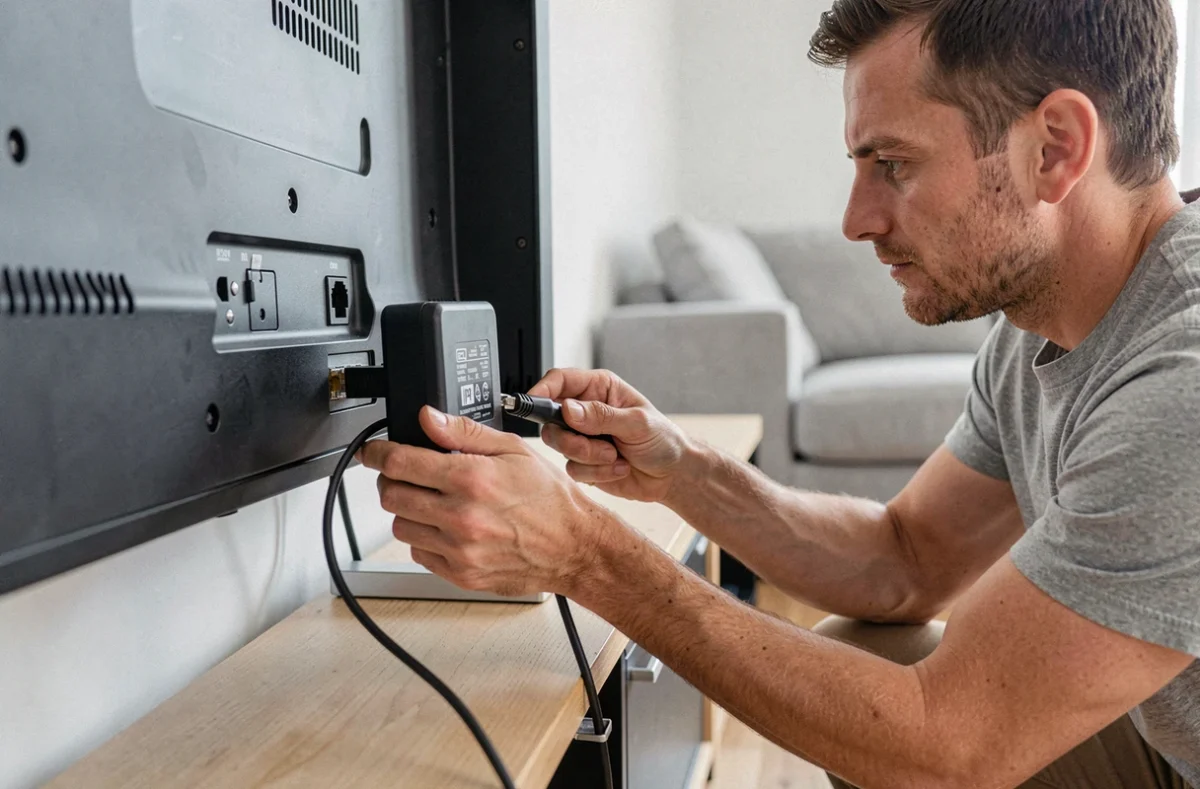
An IPTV box connected via HDMI to the TV, an internet connection that seems fine, and yet the image pixelates or the stream cuts out every two minutes. The problem rarely comes from the IPTV provider: it is the link between the box and the local network that causes issues in most cases.
Client Isolation and Wi-Fi Bands: Network Blockages That Bandwidth Doesn’t Show
It is often thought that a good internet speed is enough to run IPTV smoothly. The reality on the ground is more subtle: stability depends less on raw bandwidth than on the configuration of the local network.
The first common pitfall: client isolation (AP isolation or client isolation). This feature, enabled by default on some recent routers and on almost all guest networks, prevents devices connected to the same Wi-Fi from seeing each other. The result: if you try to cast a stream from a phone to the TV or a Chromecast, detection fails, even if the internet works perfectly on both devices.
To check, you need to access the router’s interface (often via 192.168.1.1) and look for the option in the advanced Wi-Fi settings. On a Freebox or a standard operator box, the setting is usually found in the wireless network section.
The second source of problems: separate Wi-Fi bands. When the router broadcasts the 2.4 GHz band and the 5 GHz band under two different network names, the phone may be on one and the TV on the other. Google explicitly recommends checking that both devices are on the same band to avoid discovery or casting errors.
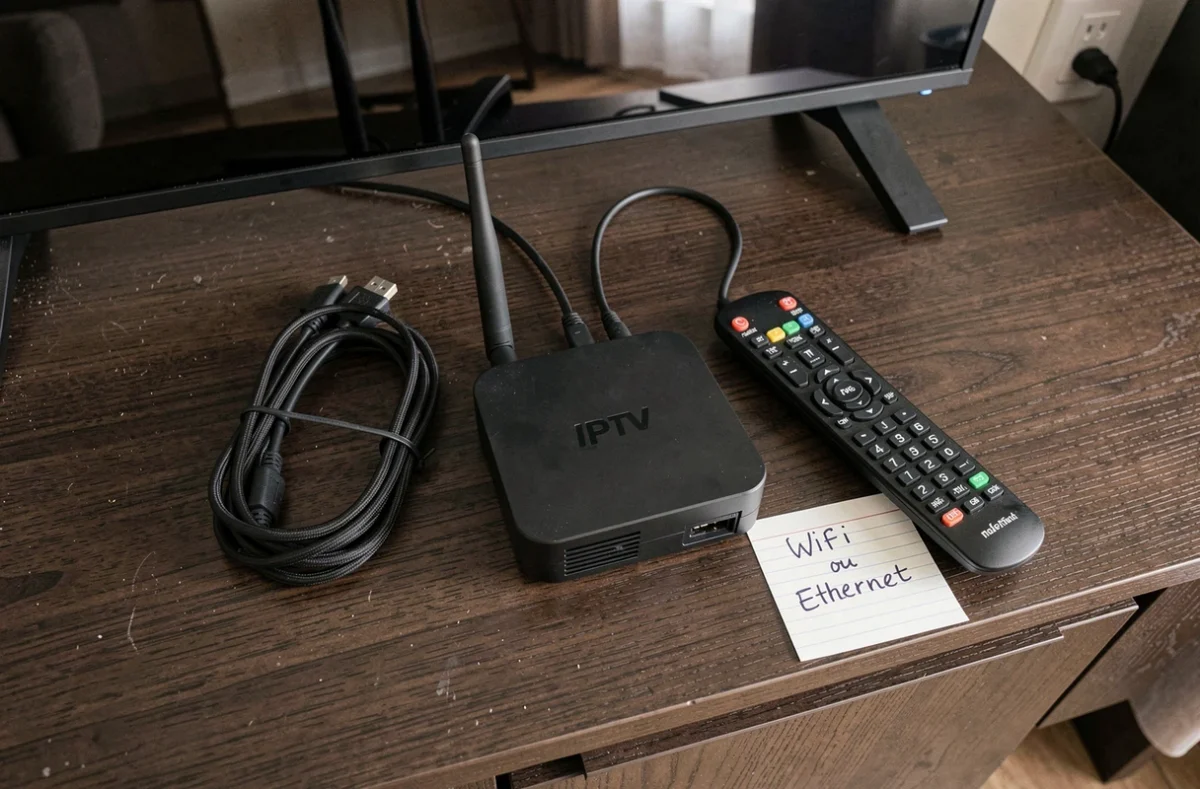
You can connect your IPTV via Wi-Fi or Ethernet correctly once this point is verified, as most connection failures simply disappear by unifying the network.
Ethernet Connection on TV and IPTV Box: Check Before Buying a Cable
The logical reflex to stabilize an IPTV stream is to switch to Ethernet. A direct line between the box (or TV) and the router, no interference, no signal loss. On paper, it’s the ideal solution.
Not all boxes and televisions have an Ethernet port. Some recent models, designed for 100% wireless use, do not include any RJ45 socket. This is the case with several sticks like the Amazon Fire TV Stick or certain Chromecast devices, which require a specific USB-Ethernet adapter for a wired connection.
Before investing in a network cable, check two things:
- The presence of an Ethernet port on the back of the box or TV (RJ45 socket, often located next to the HDMI port)
- The compatibility of the adapter if the port is absent: not all USB-Ethernet adapters work with all systems, feedback varies on this point depending on the models of Android TV boxes
- The distance between the router (or internet box, Freebox, fiber box) and the location of the TV, to determine if a direct cable is realistic or if a powerline adapter needs to be considered
Powerline (CPL) transmits the network signal through the electrical circuit of the home. It’s a good compromise when the router is too far for an Ethernet cable and the Wi-Fi is not stable enough. The quality depends a lot on the electrical installation: an old home with a worn-out panel will yield poorer results than a recent construction.
Configuring IPTV Connection on a Smart or Non-Smart TV
Smart TV with Integrated System
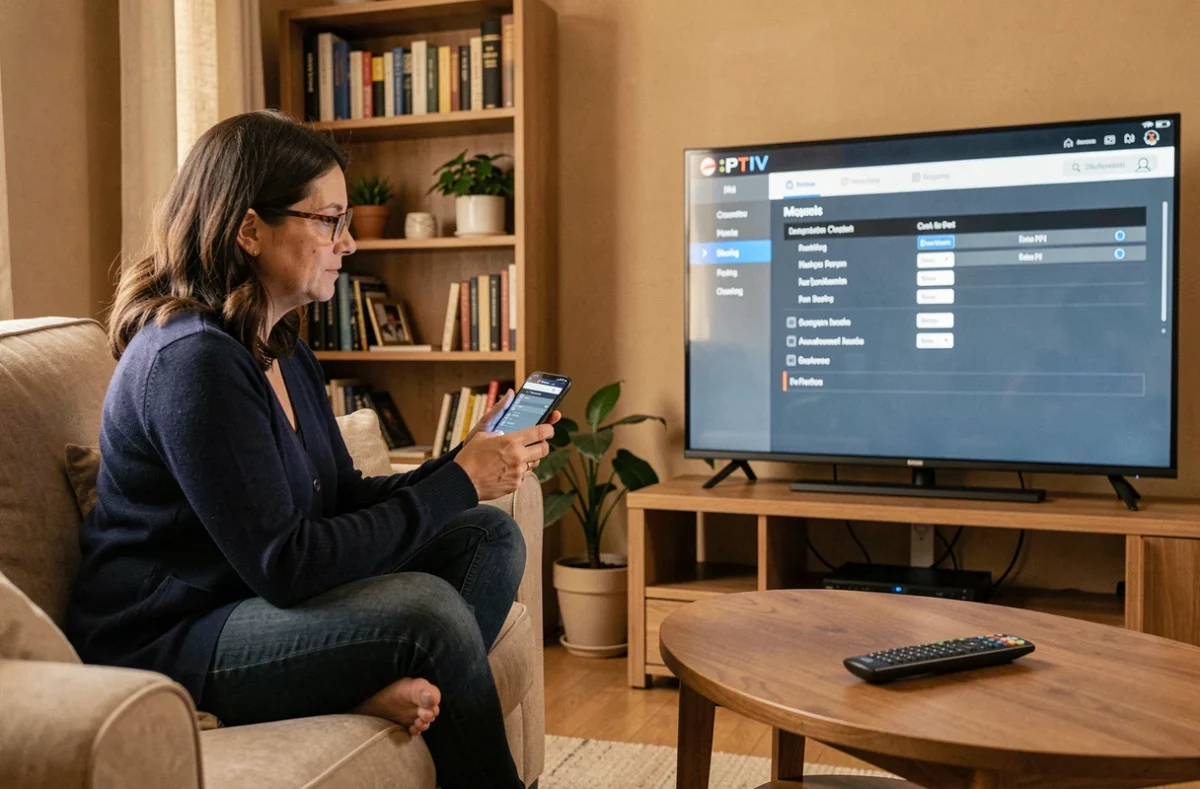
On a smart TV (Samsung, LG, Philips, Android TV), the connection to the network is done in the system settings. You select Wi-Fi or plug in the Ethernet cable, and the TV automatically retrieves an IP address.
The IPTV application is then installed from the app store integrated into the TV. The most common applications (IPTV Smarters, Smart IPTV, TiviMate) then ask for the provider’s credentials: server URL, username and password, or an M3U playlist file.
Non-Smart TV: The External Box Becomes the Player
On a TV without a connected system, you go through an external box connected via HDMI. The most common options:
- Amazon Fire TV Stick: plugged into the HDMI port, connected via Wi-Fi, it provides access to the Play Store or Amazon Appstore to install IPTV applications
- Android TV Box (Xiaomi Mi Box, Nvidia Shield): same logic with an Ethernet port on most models, allowing for a direct wired connection
- Apple TV: works with certain compatible IPTV applications, Wi-Fi or Ethernet connection depending on the model
In all cases, the box connects to the network via the system settings, just like a computer connects to the internet. The TV then serves only as a screen.
Security of IPTV Applications: A Often Ignored Point at Connection
Most guides focus on physical connection and network configuration. A concrete risk is often overlooked: IPTV applications installed outside the official store present a real security risk.
A documented case in Google support describes an application called “Google IPTV,” capable of disrupting the device’s interface and settings. Google recommends in such situations to use safe mode, uninstall the suspicious application, and run a scan with Play Protect.
To limit risks during installation:
- Prefer applications available on the Google Play Store or Amazon Appstore rather than APK files downloaded from third-party sites
- Check the reviews and the last update date of the application before installation
- Enable Play Protect in the settings of the Android TV box for an automatic scan of installed applications
An IPTV box connected via Ethernet or Wi-Fi remains a device on the home network. A malicious application installed on it can potentially access other resources on the local network. Separating the guest network from the main network adds a layer of protection if using applications whose reliability is uncertain.
Connecting IPTV to a television ultimately comes down to three checks: compatibility of ports (HDMI, Ethernet, adapter), correct configuration of the local network (same band, no client isolation), and reliability of installed applications. An Ethernet cable remains the most stable connection when physically possible, but a well-configured Wi-Fi on the 5 GHz band does the job for the vast majority of uses.