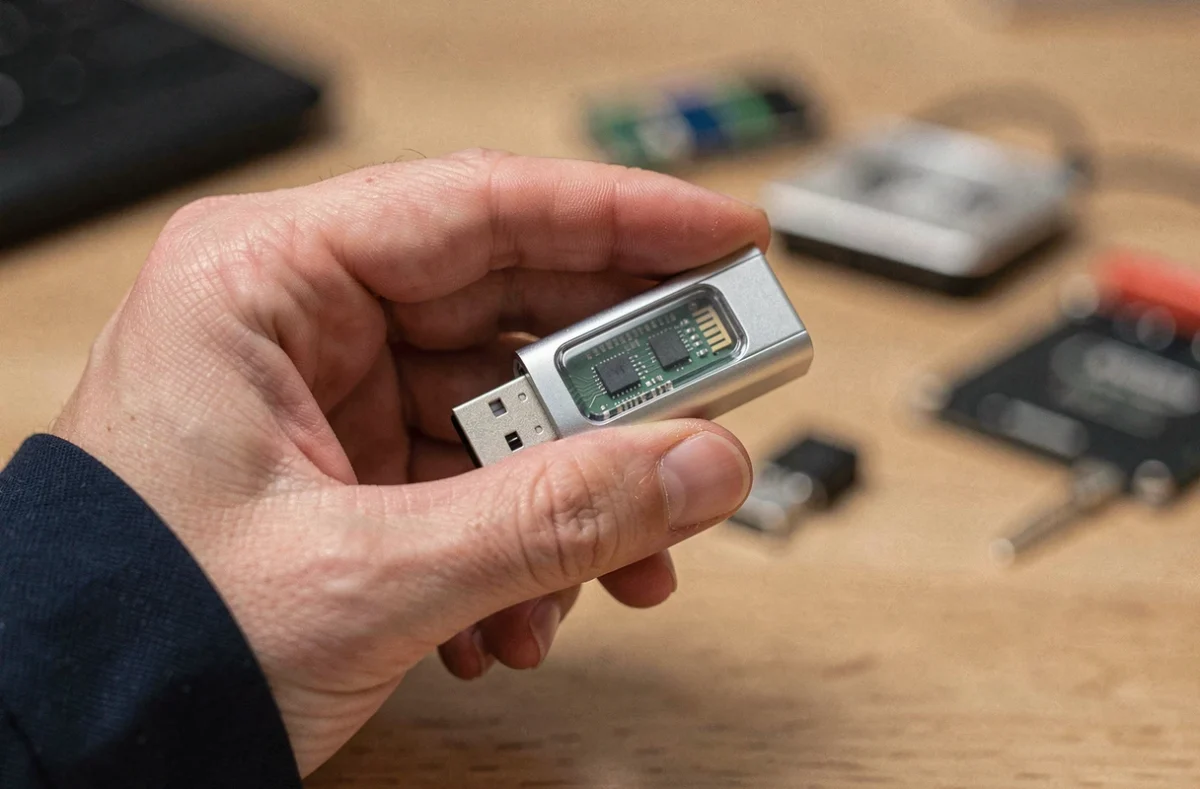
Plug a USB flash drive into a computer, copy a folder, unplug it, and move on. It takes just a few seconds, but the mechanism that stores your files inside this little device is far less straightforward than it might seem. A USB flash drive uses flash memory, a storage technology that retains data without a power supply.
Understanding what happens between the moment you drag a file onto the drive and the moment you find it on another computer can help you choose the right drive, extend its lifespan, and know what you can reasonably trust it to store.
The controller: the hidden brain of a USB flash drive
Imagine opening up a USB flash drive. You’ll find two main components soldered onto a small circuit board: a flash memory chip and a controller. The chip stores the data; the controller manages everything else.
When your computer sends a file, it works with logical addresses: “store this block of data at location 4,027.” The controller translates that logical address into a specific physical location on the flash chip. This is the controller’s main job, which is why two drives with the same capacity can have very different performance.
The controller also manages wear. Each flash memory cell can withstand a limited number of write cycles. To prevent one area from being used much more than others, the controller distributes writes across the entire chip. This process is called wear leveling. It also identifies defective areas and sets them aside, using spare locations instead.
To understand how a USB flash drive works in detail, keep in mind that the controller isn’t just a simple go-between: it determines the drive’s real-world reliability.

NAND flash memory: how data is retained without power
You may have noticed that a USB flash drive keeps your files even when it’s unplugged for months. This is the defining feature of flash memory: it is non-volatile, retaining information without a power supply.
Electrons trapped in a floating gate
Each flash memory cell contains a transistor with a floating gate, a conductive layer insulated by a very thin material. During writing, an electrical voltage forces electrons through this insulating barrier and into the floating gate. Once the voltage is switched off, the electrons remain trapped.
To read the data, the controller measures the transistor’s voltage. If electrons are trapped in the gate, the voltage differs from that of an empty cell. This difference encodes a 0 or a 1—the basic binary language of computing.
SLC, MLC, TLC: more bits per cell, more capacity
The first flash chips stored one bit per memory cell (SLC). Manufacturers later added multiple voltage levels to each cell to encode more bits.
- SLC (Single Level): one bit per cell; the fastest and most durable, but the most expensive per gigabyte
- MLC (Multi Level): two bits per cell; a good balance between performance and cost
- TLC (Triple Level): three bits per cell; the most common technology in USB flash drives and consumer SSDs, offering high capacity but lower endurance
The more bits stored in each memory cell, the higher the capacity—but the shorter the lifespan. Manufacturers manage this trade-off by combining the type of chip with the quality of the controller and the number of spare locations.
USB connector and transfer speed: don’t confuse shape with speed
The shape of the port tells you nothing about its speed. A USB-C connector can support USB 2.0, USB 5 Gbps (formerly USB 3.0), or USB 10 Gbps, depending on the standard supported by the drive, the computer’s port, and any cable used.
Since January 2024, the USB-IF (the organization that manages USB standards) has recommended naming standards by their actual data rates: USB 5 Gbps, USB 10 Gbps, and USB 20 Gbps. This naming system replaces the USB 3.0, 3.1, and 3.2 Gen 1/Gen 2 labels, which caused confusion.
Check the advertised speed on the packaging, not the connector shape. A USB-A drive labeled USB 5 Gbps will be faster than a USB-C drive limited to USB 2.0.
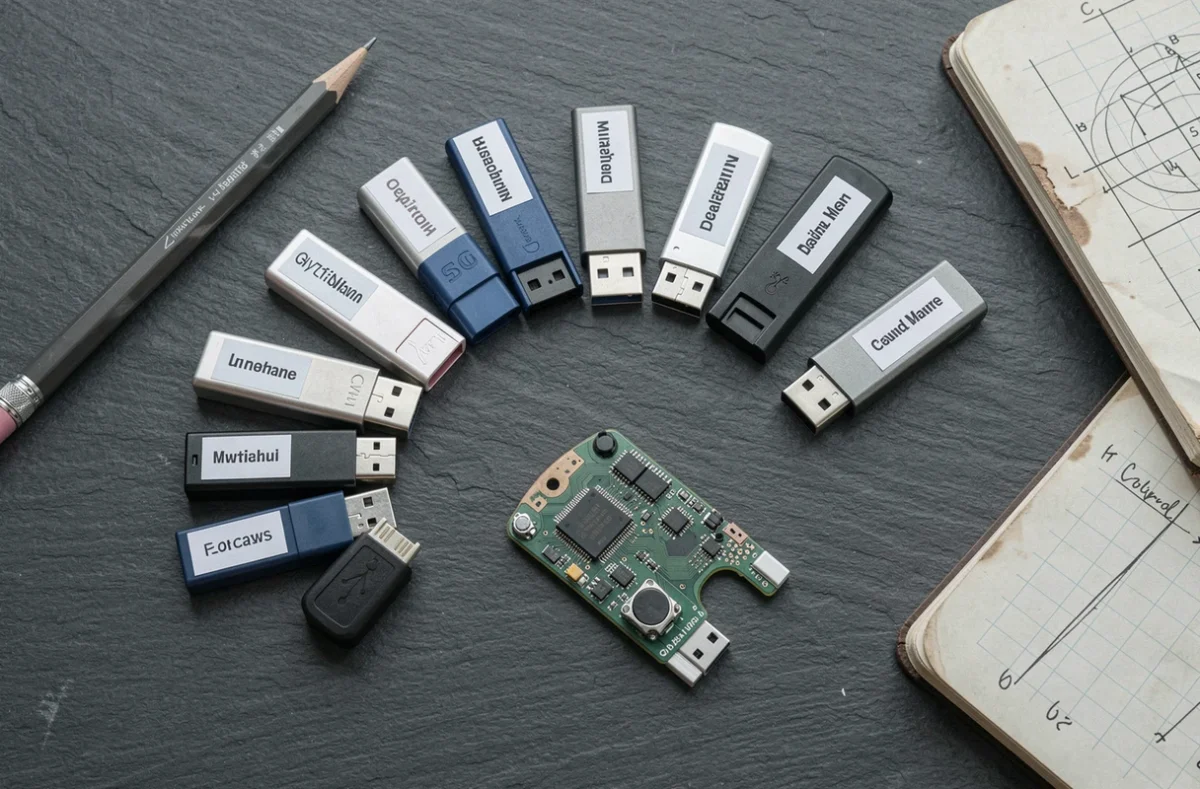
Limitations of USB flash drive storage
Flash memory has remarkable properties (no moving parts, shock resistance, low power consumption), but it also has some practical limitations.
Data retention isn’t forever
Non-volatile doesn’t mean permanent. Over time, electrons trapped in the floating gate can leak out. Heat speeds up this process. A heavily worn drive (with many write cycles) will retain data without power for less time than a drive that has seen little use. If you store files on a drive for several years without plugging it in, it’s sensible to check them periodically.
Deleting doesn’t always mean erasing
When you delete a file or format a drive, the computer marks the space as available, but old data may remain in areas inaccessible to the user. Wear leveling and spare locations create hidden areas that the operating system cannot address directly. To reliably erase sensitive data, you need specific methods, such as secure erasure built into the controller or physical destruction.
What sets a USB flash drive apart from an SSD
The underlying technology is the same: NAND flash memory managed by a controller. The difference lies in the controller’s sophistication, the amount of cache memory, and the interfaces used.
- An SSD has a multi-layer controller with DRAM cache, optimized for thousands of simultaneous operations
- A USB flash drive uses a simplified controller, sufficient for sequential file transfers
- SSDs often connect via NVMe or SATA, interfaces with greater bandwidth than USB
In practical terms, a USB flash drive is suitable for carrying files, not for replacing a drive used every day. For intensive storage tasks (databases, video editing), an SSD is the right choice.
Flash storage—whether in the form of a USB flash drive, an SSD, or a memory card—relies on the same physical principle: electrons trapped in silicon. What changes from one storage medium to another is the quality of the controller and the connection interface. Keeping these two factors in mind is all it takes to make an informed choice next time you buy one.